Creating seamless and professional textile repeats is a critical skill for designers working in the fabric and fashion industries. Adobe Illustrator stands out as a leading tool for this process, offering precision, flexibility, and powerful features that streamline the workflow from concept to print. Whether you are new to digital pattern design or seeking to refine your process, understanding how to use Adobe Illustrator for textile repeats can elevate your work and ensure your designs are production-ready.
This guide will walk through the essential steps, tips, and best practices for building repeat patterns in Illustrator. You’ll also find insights into preparing files for various printing methods and discover resources to further expand your textile design skills.
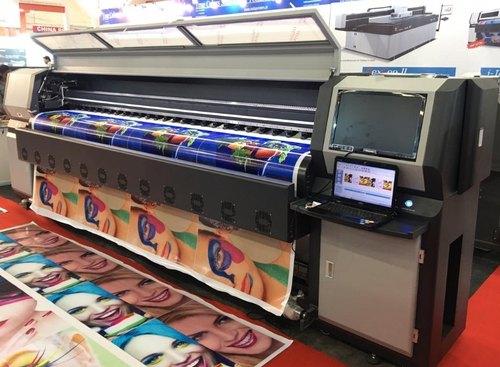
For those interested in exploring sustainable materials or advanced sampling methods, you might also find value in learning about the how to use inkjet technology for textile sampling process, which integrates well with digital design workflows.
Why Use Illustrator for Textile Pattern Repeats?
Adobe Illustrator is favored by textile designers for its vector-based environment, which allows for scalable, editable, and precise pattern creation. Unlike raster programs, Illustrator ensures that motifs remain crisp at any size, making it ideal for both small-scale swatches and large-format fabric runs. The software’s Pattern Tool and advanced alignment options also simplify the process of building seamless repeats, reducing manual adjustments and potential errors.
- Scalability: Vector graphics maintain quality at any resolution.
- Color Management: Swatches and color libraries help control palettes for print accuracy.
- Efficiency: Automated pattern generation and editing tools speed up the workflow.
Preparing Your Artwork for Repeat Creation
Before building a repeat, it’s important to prepare your motifs and artwork. Start by sketching or importing your design elements into Illustrator. Use the following steps to set up your workspace:
- Document Setup: Open a new file and set the artboard size to match your intended repeat tile (e.g., 12″x12″ or 30cm x 30cm).
- Artwork Cleanup: Ensure all motifs are vectorized, paths are closed, and unnecessary anchor points are removed.
- Color Swatches: Create and save custom color swatches to maintain consistency throughout your design.
Building Seamless Repeats in Illustrator
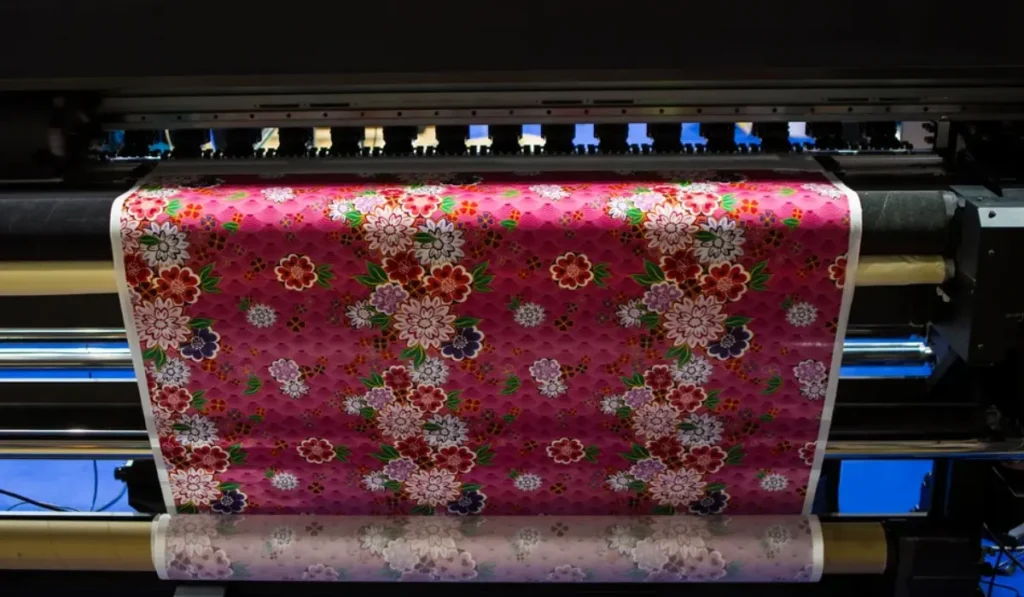
There are several repeat styles commonly used in textile design, including straight, half-drop, and brick repeats. Here’s a step-by-step overview for creating a basic seamless repeat using Illustrator’s Pattern Tool:
- Select Your Motifs: Arrange your artwork within the boundaries of your artboard, ensuring no elements extend beyond the edges unless intentionally designed to tile.
- Use the Pattern Tool: With your motifs selected, go to Object > Pattern > Make. Illustrator will open the Pattern Editing Mode, displaying a preview of your repeat.
- Adjust Tile Settings: In the Pattern Options panel, choose your repeat type (Grid, Brick by Row, Brick by Column, etc.), set the tile size, and adjust spacing as needed.
- Test the Seam: Zoom in and out to check for visible seams or gaps. Use the tile boundaries to nudge motifs for a seamless effect.
- Save the Pattern: Click Done in the Pattern Options panel. The new pattern swatch will appear in your Swatches panel, ready for use.
For more advanced repeats, such as half-drop or mirrored layouts, experiment with the tile type and offset options within the Pattern Tool.
Tips for Professional Results with Textile Repeats
To ensure your patterns are production-ready and visually appealing, keep these best practices in mind:
- Consistent Motif Edges: Any motif that touches the edge of the tile must align perfectly with the opposite edge. Use copy and paste with precise coordinates for accuracy.
- Color Management: Stick to a limited color palette where possible, and use Pantone or industry-standard color libraries for consistency in print.
- Layer Organization: Name and group layers logically to simplify edits and file handoff to printers or collaborators.
- Test Your Repeat: Apply the pattern swatch to a large rectangle to preview how it tiles across a bigger area. This helps catch any hidden seams or awkward repeats.
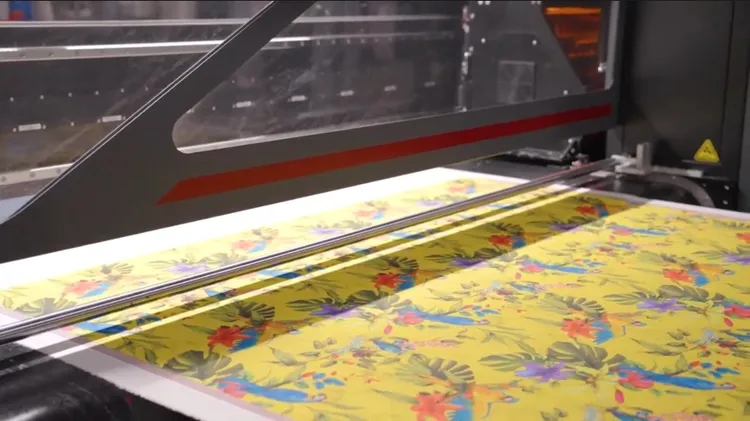
Exporting and Preparing Files for Textile Printing
Once your repeat is finalized, it’s time to prepare your file for printing. Different printing methods may require specific file formats or color profiles. Here’s how to get your pattern ready:
- Flatten Transparency: If your design uses transparency, flatten it to avoid unexpected results during printing.
- Convert Text to Outlines: If your pattern includes text, convert it to outlines to prevent font issues.
- Set Color Mode: Switch your document color mode to CMYK for most textile printing processes.
- Export as TIFF or PDF: Save your repeat tile as a high-resolution TIFF or PDF, following your printer’s specifications.
For a deeper dive into how different inks and printing technologies can impact your finished fabric, consider reading about the difference between solvent and eco-solvent textile inks.
Integrating Digital Textile Printing and Sustainability
Digital textile printing has transformed the industry by enabling short runs, rapid prototyping, and reduced waste. When paired with digital design tools like Illustrator, designers can quickly iterate and test patterns before committing to large-scale production. For those interested in the environmental impact and future of digital printing, this overview of digital textile printing and sustainability offers valuable insights into eco-friendly practices and innovations.
Common Challenges and Troubleshooting
Even experienced designers encounter challenges when building repeats. Here are some common issues and solutions:
- Visible Seams: Double-check motif placement and use the Pattern Tool’s preview to spot and fix any misalignments.
- Color Shifts: Always work in the correct color mode and proof your colors with test prints before final production.
- File Size: Large, complex patterns can create heavy files. Simplify artwork where possible and use vector elements instead of high-res raster images.
FAQ: Textile Repeat Design in Illustrator
What is the best repeat type for fabric design?
The ideal repeat type depends on your design intent. Straight repeats are simple and versatile, while half-drop and brick repeats create more dynamic, less obvious tiling. Experiment with different styles to see which complements your motifs best.
How do I ensure my pattern tiles seamlessly?
Use Illustrator’s Pattern Tool to preview and adjust your tile. Make sure motifs that touch the edges align perfectly with the opposite side. Applying the pattern to a large area helps reveal any hidden seams or misalignments.
Can I use photographs or raster images in my repeats?
Yes, but keep in mind that raster images may not scale as cleanly as vectors. If you include photos, ensure they are high resolution and properly embedded. For best results, convert key elements to vector artwork whenever possible.
Conclusion
Mastering how to use Adobe Illustrator for textile repeats opens up a world of creative possibilities for fabric and surface pattern designers. By leveraging Illustrator’s robust tools and following best practices for motif preparation, repeat construction, and file export, you can produce professional, production-ready patterns for any textile application. Continue exploring new techniques and stay updated on printing technologies to keep your designs fresh and competitive in the evolving textile industry.