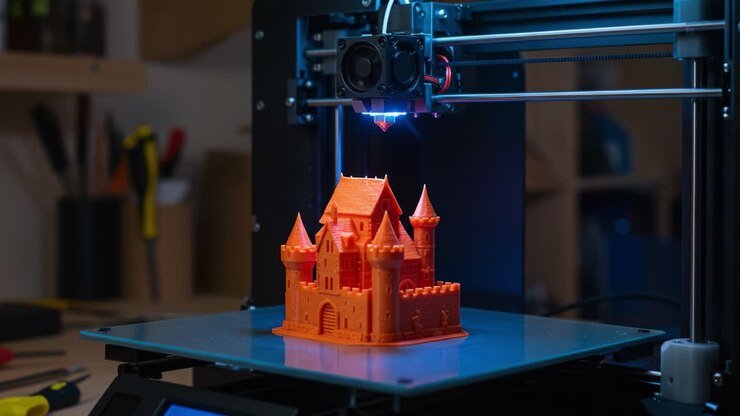
Achieving high-quality 3D prints depends on a range of factors, but one of the most crucial is dialing in the correct printing temperature settings. Whether you’re working with PLA, ABS, PETG, or specialty filaments, understanding how temperature impacts print quality can help you avoid common issues like stringing, warping, or poor layer adhesion. This guide will break down the essentials of temperature calibration, provide practical troubleshooting tips, and offer advice for both beginners and experienced makers looking to optimize their results.
Before diving into the technical details, it’s helpful to understand how temperature interacts with material properties and printer hardware. For those interested in more advanced design considerations, exploring printing complex geometries can further enhance your 3D printing skills.

Why Temperature Matters in 3D Printing
The right thermal settings are essential for ensuring your filament melts and bonds correctly. Too low, and you may see under-extrusion, weak layers, or even a clogged nozzle. Too high, and you risk stringing, oozing, or deformed prints. Each material has its own optimal range, and even small adjustments can make a significant difference in your finished object.
- Layer Adhesion: Proper heat ensures each layer fuses well with the previous one, resulting in strong, durable prints.
- Surface Finish: The right temperature can reduce visible lines, blobs, and stringing, giving your models a smoother appearance.
- Dimensional Accuracy: Stable settings help maintain the intended size and shape of your design.
Understanding Material-Specific Temperature Ranges
Different filaments require different heat levels. Here’s a quick overview of common materials and their typical ranges:
| Material | Nozzle Temp (°C) | Bed Temp (°C) |
|---|---|---|
| PLA | 190–220 | 20–60 |
| ABS | 220–250 | 80–110 |
| PETG | 220–250 | 60–80 |
| TPU | 210–240 | 20–60 |
| Nylon | 240–270 | 70–100 |
Always check the filament manufacturer’s recommendations, as brands and even colors can vary. If you’re experimenting with new materials, start in the middle of the suggested range and adjust based on your results.
How to Calibrate Printing Temperature Settings
Fine-tuning your printing temperature settings is a process that benefits from a methodical approach. Here’s how to get started:
- Print a Temperature Tower: Download or design a simple tower model that prints segments at different nozzle temperatures. This visual tool helps you spot the best range for your filament.
- Observe Print Quality: Look for signs of stringing, blobs, or poor adhesion at each segment. The optimal zone will have clean lines and strong layers.
- Test Bed Temperature: If you notice warping or poor first-layer adhesion, try adjusting the heated bed in 5°C increments.
- Document Your Results: Keep notes on what works best for each material and printer setup. This will save time for future projects.
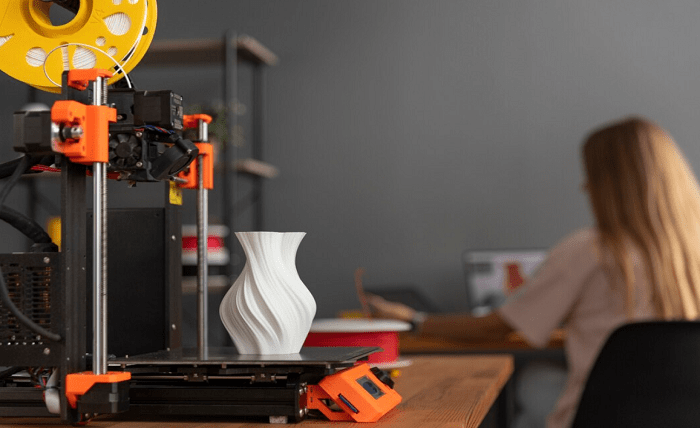
Common Problems and Troubleshooting Tips
Even with careful calibration, you may encounter issues related to heat settings. Here are some frequent problems and how to address them:
- Stringing: If you see thin threads between parts, lower the nozzle temperature by 5–10°C or increase retraction distance.
- Poor Layer Adhesion: Layers not bonding? Try raising the temperature slightly, but avoid going too high to prevent oozing.
- Warping: Warping often results from a bed that’s too cool or poor first-layer adhesion. Increase bed temperature or use adhesives like glue stick or painter’s tape.
- Clogged Nozzle: Printing too cold can cause jams. Clean the nozzle and increase the temperature within the recommended range.
For more troubleshooting strategies and design advice, see 3D modeling tips for printing to help avoid common design errors that can interact with temperature-related issues.
Advanced Tips for Consistent Results
Once you’ve mastered the basics, consider these advanced strategies for even better prints:
- Use an Enclosure: For materials like ABS or Nylon, an enclosure helps maintain a stable environment and reduces temperature fluctuations.
- Monitor Ambient Temperature: Printing in a cold room can affect your results. Try to keep your workspace at a consistent temperature.
- Upgrade Your Hotend: All-metal hotends can handle higher temperatures and a wider range of materials.
- Regular Maintenance: Clean your nozzle and check your thermistor for accurate readings.
Resources for Further Learning
For those looking to deepen their understanding of 3D printing, there are many excellent guides and resources available. One comprehensive option is the complete 3D printing guide from Xometry, which covers materials, settings, and troubleshooting in greater detail.
If you’re interested in optimizing your digital workflow, check out 3D printing file formats explained and how to design for 3D printing for more tips on preparing your models for successful prints.
FAQ: Fine-Tuning Your 3D Printing Temperatures
How do I know if my nozzle temperature is too high or too low?
Signs of excessive heat include stringing, blobs, and a glossy or droopy appearance. If your temperature is too low, you may notice under-extrusion, weak layers, or even a clicking extruder. Adjust in small increments and monitor your results closely.
Is it necessary to change bed temperature for every filament?
Yes, different filaments have unique requirements for bed adhesion. PLA often works well at room temperature or slightly heated beds, while ABS and Nylon need higher bed temperatures to prevent warping. Always consult the filament’s guidelines.
Can environmental factors affect my print temperatures?
Absolutely. Room temperature, drafts, and humidity can all impact how your printer maintains heat. Printing in a stable, enclosed environment helps ensure consistent results, especially with temperature-sensitive materials.
What’s the best way to keep track of my optimal settings?
Maintain a log or spreadsheet for each filament type, noting the nozzle and bed temperatures that yield the best results. This habit saves time and reduces trial and error for future projects.