Achieving high-quality results in 3D printing depends on understanding the relationship between layer height and print resolution. These two factors influence the final appearance, strength, and speed of your printed objects. Whether you’re a beginner or looking to refine your process, this layer height and resolution guide will help you make informed decisions for your next project.
The choices you make regarding print settings can dramatically affect the outcome. From the smoothness of surfaces to the time required for completion, every parameter matters. If you’re also interested in advanced topics like printing complex geometries or want to learn about 3D printing file formats explained, exploring these resources can further enhance your skills.
Understanding Layer Height in 3D Printing
Layer height refers to the thickness of each individual layer that a 3D printer deposits as it builds up an object. It is typically measured in millimeters (mm) or microns (µm). The most common settings range from 0.05 mm (50 microns) to 0.3 mm (300 microns), but values outside this range are possible depending on your printer and nozzle.
The choice of layer height directly impacts the level of detail, surface finish, and print time. Lower values produce finer details and smoother surfaces, while higher values speed up the process but may result in visible layer lines.
How Layer Height Affects Print Quality
- Fine Layer Heights (0.05–0.1 mm): Best for intricate models, miniatures, or parts where surface smoothness is critical. These settings increase print time but deliver superior detail.
- Standard Layer Heights (0.15–0.2 mm): Offer a balance between speed and quality. Ideal for most functional parts and prototypes.
- Coarse Layer Heights (0.25 mm and above): Suitable for large, simple objects where speed is prioritized over surface finish.
Selecting the right layer height is essential for matching your project’s requirements. For more on preparing your models, see our guide on how to design for 3D printing.
Print Resolution: What It Means for Your Models
In the context of additive manufacturing, resolution describes the smallest movement or feature your printer can reproduce. It is often discussed in terms of both the vertical axis (layer height) and the horizontal axes (X and Y resolution).
Higher resolution means the printer can create finer details, but it also means longer print times and potentially more post-processing. The type of printer you use—FDM (Fused Deposition Modeling), SLA (Stereolithography), or others—will influence the achievable resolution.
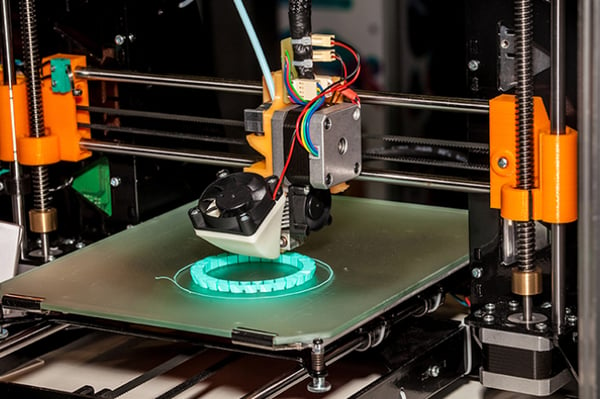
Comparing X/Y and Z Resolution
- Z Resolution (Layer Height): Determines the vertical smoothness and detail of your print. Lower values mean more layers and finer detail.
- X/Y Resolution: Refers to the smallest movement the printer can make horizontally. This is influenced by the stepper motors, belts, and mechanical precision.
While most hobbyists focus on layer height, don’t overlook the importance of horizontal resolution—especially for detailed or mechanical parts.
Choosing the Best Settings for Your Project
The optimal combination of layer height and resolution depends on your specific needs. Here are some factors to consider:
- Model Complexity: Highly detailed models benefit from lower layer heights and higher resolution.
- Print Speed: Thicker layers and lower resolution settings reduce print time but may compromise quality.
- Material: Some filaments or resins perform better at certain settings. For example, flexible filaments may require thicker layers for strength.
- Printer Capabilities: Not all machines can reliably print at ultra-fine resolutions. Always check your printer’s specifications.
If you’re new to selecting these parameters, start with your printer’s recommended settings and experiment with small adjustments. For a deeper dive into model preparation, our article on 3D modeling tips for printing offers practical advice.
Common Layer Height and Resolution Settings
| Application | Layer Height (mm) | Print Speed | Detail Level |
|---|---|---|---|
| Miniatures & Figurines | 0.05–0.1 | Slow | Very High |
| Functional Prototypes | 0.15–0.2 | Moderate | Good |
| Large Parts | 0.25–0.3 | Fast | Moderate |
How to Adjust Layer Height and Resolution in Your Slicer
Most 3D printing software (slicers) allow you to set the layer height and resolution before starting a print. Here’s a general process:
- Open your model in the slicer.
- Locate the Layer Height setting—usually found in the print quality or advanced section.
- Choose a value that matches your project’s needs. Remember, smaller numbers mean higher detail but longer print times.
- Check for additional resolution settings, such as X/Y accuracy or minimum feature size, if available.
- Preview the sliced model to ensure the layer lines and details look as expected.
For those interested in exploring different printer types and their capabilities, Formlabs’ 3D printer overview provides a comprehensive look at available technologies.
Tips for Achieving the Best Print Quality
- Calibrate Your Printer: Regular calibration ensures accurate layer deposition and consistent results.
- Use Quality Filament or Resin: Material quality can affect how well fine details are reproduced.
- Monitor Print Environment: Temperature and humidity can influence print quality, especially for high-resolution jobs.
- Update Firmware and Software: Keeping your printer and slicer up to date can unlock new features and improve performance.
- Test and Iterate: Print small test objects at different settings to find the optimal balance for your needs.
If you’re just starting out with design, our resource on CAD for 3D printing beginners can help you create models that are optimized for your chosen settings.
Frequently Asked Questions
What Is the Best Layer Height for 3D Printing?
The ideal layer height depends on your project’s requirements. For highly detailed models, use 0.05–0.1 mm. For general-purpose parts, 0.15–0.2 mm is a good starting point. Larger, less detailed prints can use 0.25 mm or higher for faster results.
How Does Print Resolution Affect Strength?
Finer layers can improve surface finish but may not always increase strength. In some cases, thicker layers bond better, resulting in stronger parts. Consider your application and test different settings to find the right balance.
Can I Change Layer Height Mid-Print?
Some advanced slicers allow for variable layer heights within a single print. This technique can optimize detail in specific areas while saving time elsewhere. Check your slicer’s documentation for this feature.
Does Printer Type Affect Maximum Resolution?
Yes, different technologies have different capabilities. SLA and DLP printers can achieve much finer details than most FDM printers. Always consult your printer’s specifications to understand its limits.
Mastering the relationship between layer height and resolution is key to producing high-quality 3D prints. By understanding how these settings interact and experimenting with your own projects, you’ll be able to achieve the results you want—whether you’re printing functional prototypes, artistic models, or complex engineering parts.