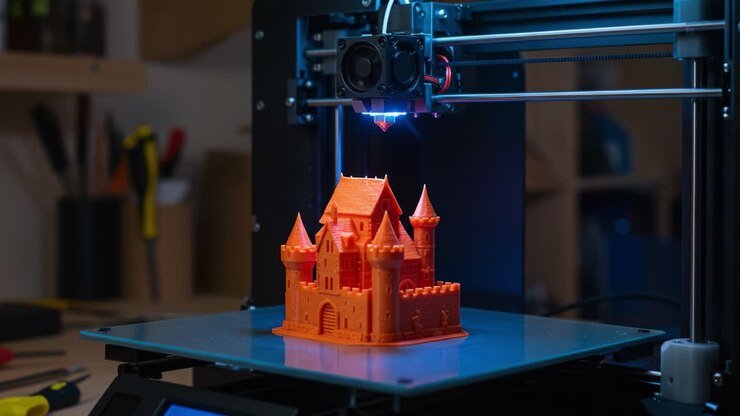
Getting started with CAD for 3D printing beginners can feel overwhelming, but with the right approach, anyone can learn to create their own printable designs. Computer-Aided Design (CAD) software is the essential bridge between your ideas and the physical objects you want to produce on a 3D printer. Whether you’re interested in making custom tools, replacement parts, or creative art pieces, learning the basics of CAD will open up a world of possibilities.
This guide will walk you through the fundamentals of CAD modeling for newcomers, explain how to prepare your first printable files, and offer practical tips for success. Along the way, you’ll find helpful resources, links to related topics like open source 3D printing software, and answers to common questions faced by those just starting out.
Understanding CAD and Its Role in 3D Printing
CAD, or Computer-Aided Design, is software used to create precise digital models of objects. For those new to 3D printing, CAD is the starting point for turning ideas into printable files. The digital models you create are exported as STL or OBJ files, which can then be processed by slicing software and sent to your 3D printer.
There are many CAD programs available, ranging from simple, browser-based tools to advanced professional suites. Beginners often start with user-friendly options like Tinkercad, FreeCAD, or Fusion 360. These platforms offer intuitive interfaces and plenty of tutorials to help you learn the basics.
Choosing the Right CAD Software for New Users
Selecting the best CAD tool depends on your goals, budget, and comfort with technology. Here are a few popular choices for those just starting with CAD for 3D printing beginners:
- Tinkercad: A free, web-based tool designed for absolute beginners. Its drag-and-drop interface makes it easy to create simple shapes and combine them into more complex models.
- FreeCAD: Open-source and more powerful, suitable for users who want to learn parametric modeling and have more control over dimensions.
- Fusion 360: Offers a free license for hobbyists and students. It provides advanced features and is widely used in both hobby and professional settings.
For a deeper look at software options, you can explore open source 3D printing software to compare features and find the right fit for your needs.
Basic Steps to Create Your First Printable Model
The process of designing a model for 3D printing typically follows these steps:
- Sketch Your Idea: Start with a simple drawing or mental image of what you want to create. Think about the size, shape, and function of the object.
- Open Your CAD Program: Launch your chosen software and set up a new project. Most programs let you define the workspace size to match your printer’s build volume.
- Create Basic Shapes: Use the software’s tools to add and modify basic geometric forms (cubes, cylinders, spheres). Combine, subtract, or intersect these shapes to build your model.
- Edit and Refine: Adjust dimensions, add holes, fillets, or chamfers, and make sure all parts are properly joined. Check for overhangs or areas that might be difficult to print.
- Export as STL or OBJ: When your design is ready, export it in a format compatible with your slicer software.
Preparing Your Model for Printing
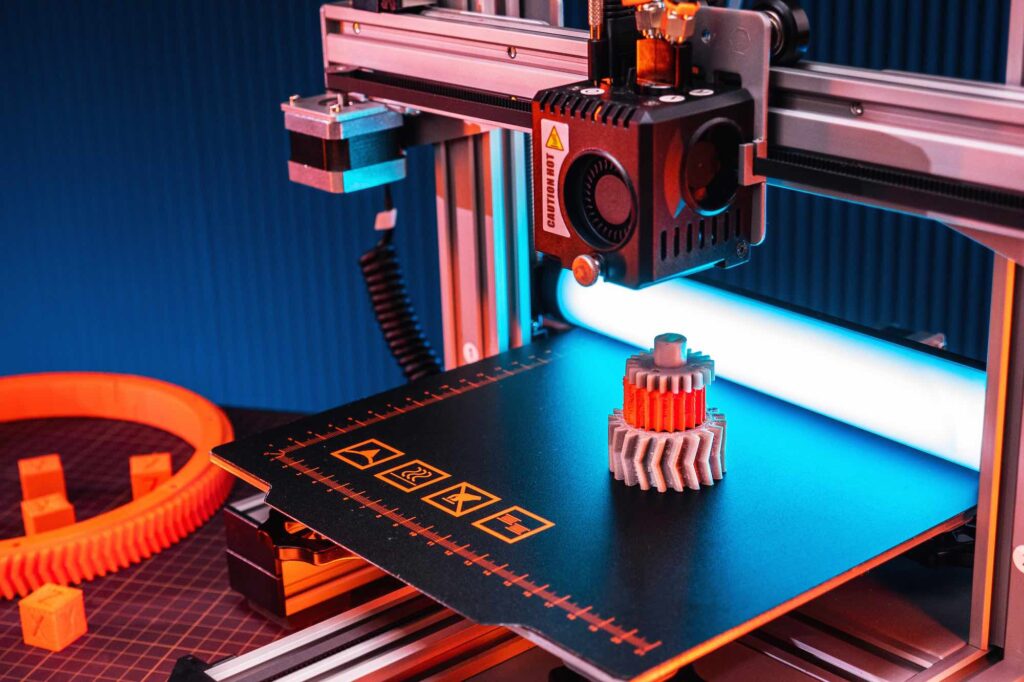
Once you have your digital model, the next step is to prepare it for printing. This involves slicing the model into layers and generating instructions for your printer. Slicer software, such as Cura, PrusaSlicer, or others, converts your STL or OBJ file into G-code.
During slicing, you can set parameters like layer height, infill density, print speed, and support structures. For those interested in comparing slicer options, check out this overview of the best slicer software for 3D printing.
Tips for Success with CAD and 3D Printing
Beginners often encounter challenges when moving from digital design to physical prints. Here are some practical tips to help you succeed:
- Start Simple: Begin with basic shapes and small projects. Complex models can be frustrating for new users.
- Check Printability: Use your CAD software’s analysis tools to identify non-manifold edges, thin walls, or intersecting geometry that might cause printing issues.
- Mind the Tolerances: If your model has moving parts or needs to fit with other objects, allow for slight gaps (usually 0.2–0.5 mm) to account for printer accuracy.
- Save Iteratively: Keep multiple versions of your design as you work. This makes it easier to revert changes or try new ideas.
- Learn from Others: Explore online communities and tutorials. Many users share their models and tips, which can accelerate your learning.

Common Mistakes and How to Avoid Them
It’s normal to face a learning curve when using CAD for 3D printing beginners. Here are some frequent pitfalls and how to sidestep them:
- Ignoring Printer Limitations: Always design within your printer’s build volume and consider its minimum feature size.
- Overlooking Supports: If your model has overhangs, plan for supports or redesign to minimize them.
- Not Calibrating Your Printer: Poor calibration can ruin even the best designs. Review how to calibrate a 3D printer for accurate results.
- Skipping Safety Precautions: Especially with resin printers, always follow resin printing safety guidelines to protect yourself and your workspace.
Expanding Your Skills and Exploring Advanced Topics
As you gain confidence, you can explore more advanced CAD features such as parametric modeling, assemblies, and sculpting. Experiment with different materials and printing techniques, and consider learning about printer maintenance to keep your equipment in top shape. For ongoing reliability, see these 3D printer maintenance tips.
The world of additive manufacturing is constantly evolving. Staying updated with the latest trends and technologies, such as those covered in industry overviews of 3D printing, will help you make informed decisions as you progress.
Frequently Asked Questions
What is the easiest CAD software for beginners to use?
Tinkercad is widely considered the most accessible option for newcomers. Its intuitive, browser-based interface allows users to create basic models without prior experience. As you become more comfortable, you can transition to more advanced tools like FreeCAD or Fusion 360.
How do I know if my model is printable?
Most CAD programs include analysis or validation tools to check for common issues such as non-manifold edges, thin walls, or intersecting geometry. Additionally, slicer software will often highlight areas that may cause problems during printing. Always review your model and run a preview in your slicer before starting a print.
Can I use free software for professional-quality prints?
Yes, many free and open-source CAD programs are capable of producing models suitable for professional use. The key is to learn the software’s features and best practices for modeling. For more on this, see our guide to open source 3D printing software.