Achieving flawless results with your 3D printer starts long before you hit the print button. One of the most critical steps is making sure your build surface is perfectly aligned. Without a properly leveled bed, even the most advanced machines and high-quality filaments can produce prints with poor adhesion, warping, or uneven layers. This bed leveling guide is designed to help both beginners and seasoned makers understand the importance of this process, master the different techniques, and troubleshoot common issues.
If you’re also interested in optimizing your 3D models for successful printing, check out our resource on how to design for 3D printing for practical design tips.
Why Bed Leveling Matters for 3D Printing Success
The foundation of every quality 3D print is a well-aligned build plate. When the bed is not properly leveled, the nozzle may be too close or too far from the surface, leading to issues such as poor first layer adhesion, warping, or even failed prints. Consistent bed alignment ensures that each layer is deposited evenly, which is essential for both structural integrity and surface finish.
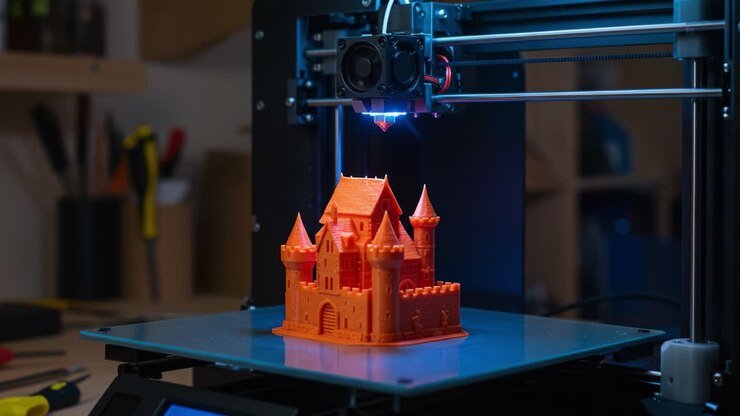
For those working with printing complex geometries, a flat and level surface becomes even more critical, as intricate models are less forgiving of inconsistencies.
Types of Bed Leveling: Manual vs. Automatic
There are two primary approaches to aligning your print bed: manual and automatic. Understanding the differences helps you choose the method that best suits your printer and workflow.
Manual Bed Leveling
This traditional technique involves adjusting the bed height at several points using screws or knobs, typically located at the corners of the build plate. You’ll use a piece of paper or a feeler gauge to set the gap between the nozzle and the bed. While manual adjustment is straightforward, it requires patience and regular checks, especially after moving your printer or changing the build surface.
Automatic Bed Leveling Systems
Many modern 3D printers feature sensors that probe the bed at multiple points before each print. These systems, often called ABL (Automatic Bed Leveling), compensate for minor surface irregularities by adjusting the nozzle height dynamically during printing. While ABL simplifies the process, occasional manual calibration may still be necessary for optimal results.
Step-by-Step Bed Leveling Instructions
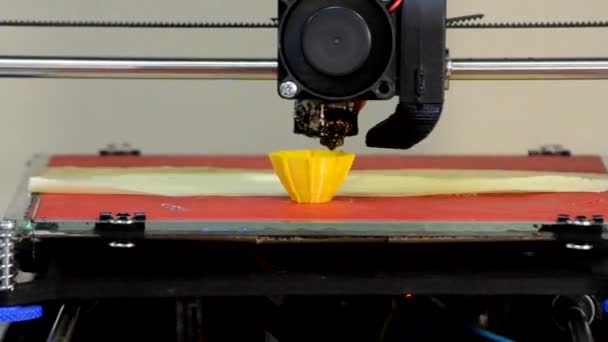
Whether you’re using a manual or automatic system, following a consistent process is key to achieving a perfectly aligned build plate. Here’s a practical walkthrough for manual adjustment, which remains relevant even for printers equipped with sensors.
- Prepare Your Printer: Start with a clean nozzle and bed. Remove any leftover filament or debris that could affect the gap measurement.
- Home the Axes: Use your printer’s controls to home the X, Y, and Z axes. This ensures the nozzle starts from a known position.
- Disable Steppers: Turn off the stepper motors so you can move the print head and bed by hand.
- Adjust the Corners: Move the nozzle to each corner of the bed. Place a sheet of standard printer paper between the nozzle and the bed. Adjust the leveling screw until you feel slight resistance when sliding the paper.
- Check the Center: Move the nozzle to the center and repeat the paper test. If the center is too high or low, adjust all corners slightly to compensate.
- Repeat as Needed: Go around the bed at least twice, as adjustments at one corner can affect others.
- Test Print: Run a simple test print, like a single-layer square, to verify adhesion and uniformity.
Common Bed Leveling Problems and Solutions
Even with careful adjustment, you may encounter issues. Here are some frequent problems and how to address them:
- Poor First Layer Adhesion: If your print doesn’t stick, the nozzle may be too far from the bed. Lower the bed slightly at the affected area.
- Nozzle Scraping the Bed: If you hear scraping or see filament not extruding, the nozzle is too close. Raise the bed or adjust the Z offset.
- Uneven Layers: If layers look inconsistent, recheck all corners and the center for uniform spacing.
- Warping or Lifting: This can result from an unlevel bed or temperature fluctuations. Ensure the surface is clean and consider using adhesives or a heated bed.
For a deeper dive into the technology behind additive manufacturing, visit this comprehensive explanation of 3D printing.
Advanced Tips for Consistent Bed Alignment
As you gain experience, you may want to optimize your process further. Here are some advanced strategies:
- Use a Glass or Magnetic Build Plate: These surfaces are often flatter and easier to clean, improving consistency.
- Install Upgraded Springs or Silicone Spacers: These components help maintain bed position over time, reducing the need for frequent adjustments.
- Regular Maintenance: Check for loose screws, worn parts, or debris under the bed that could affect leveling.
- Firmware Z-Offset Adjustment: Fine-tune the nozzle height in your printer’s firmware for even more precise control.
Related Resources for 3D Printing Enthusiasts
If you’re looking to expand your skills, explore our guides on 3D printing file formats explained and 3D modeling tips for printing. For those just starting out, our article on CAD for 3D printing beginners is a great introduction to digital design tools.
Frequently Asked Questions
How often should I level my 3D printer bed?
It’s best to check your bed alignment before every major print, especially after moving the printer, changing the build surface, or experiencing print failures. Some users with stable setups and upgraded hardware may only need to adjust every few weeks.
What’s the difference between bed leveling and bed tramming?
Both terms are often used interchangeably, but technically, tramming refers to ensuring the bed is parallel to the movement of the print head, while leveling means the nozzle maintains a consistent distance from the bed across its entire surface.
Can I use automatic bed leveling on any printer?
Many modern machines support add-on ABL sensors, but compatibility depends on your printer’s firmware and hardware. Always check manufacturer recommendations before upgrading.
Why does my first layer look uneven even after leveling?
This can result from an unclean nozzle, warped bed, or incorrect Z-offset. Double-check your leveling process, clean the nozzle, and consider running a test print to fine-tune the settings.